
Businesses have been using mobile and web applications for a wide variety of purposes, with apps built to enhance customer engagement, brand reach, business growth, and ease of work. The number of smartphone users worldwide has reached a whopping 7.3 billion by 2025, indicating that more people are engaging with mobile applications. Calculator apps have recently been experiencing a surge in popularity, as they help businesses improve internal productivity and the customer experience.
Calculator apps might appear simple; however, they usually follow the basic steps businesses take in mobile app development. Calculator-style apps are widely used as embedded features or utilities within larger digital products across industries such as fintech, education, healthcare, and enterprise tools. Whether exploring a calculator app as a broader mobile solution, a branded utility, or a quick MVP, learning the process helps you make better decisions about development approach, platform selection, timelines, and cost.
In this blog, we focus on providing a detailed view of how a calculator app is built, the decisions made at each stage, and why professional execution is essential even for a basic application. We will have a practical overview of the development process and clarity on when it makes sense to collaborate with an experienced app development company to build it perfectly across iOS, Android, and cross-platform environments. Let’s explore everything about the complete project development and learn how to make a calculator app from this article.
Why Your Business Needs a Custom Calculator App
Calculator apps are commonly used as:
- Embedded utilities for healthcare, fintech, education apps, etc.
- Branded tools to enhance customer engagement.
- MVP (Minimum Viable Product) to assess the app workflows.
- Internal productivity tools.
A custom calculator app can offer many benefits for business professionals:
- High Efficiency: Automate complex calculations to reduce errors and save time.
- Improved Accuracy: Ensure precise results for financial analyses, sales projections, and more.
- Brand Customization: Tailor the app to your brand’s look and feel to reinforce brand identity.
- Convenience: Offer a handy tool for employees and clients, accessible anytime and anywhere.
Although it has sound logic, it doesn’t promote production-ready execution. While you can build calculator apps across iOS, Android, and cross-platform ecosystems, let’s get familiar with how to make a calculator app in Android Studio.
The General Process of Creating a Simple Calculator App
To create a simple calculator app step by step, we have prepared a breakdown to explain the process more clearly. Let’s learn how to make a calculator app in general:
Planning and Research
The first step in creating an easy calculator app is planning and research. Define its scope and features, establish well-defined project milestones such as a timeline, and list required resources for launching the mobile application. Doing proper market research and gaining insights from stakeholders can help align the venture with corporate objectives, thereby improving competitive advantage.
Setting Up the Development Environment
The standard integrated development environment (IDE) for Android development, is Android Studio, which should be installed. Prepare your system with the necessary SDKs and tools. As a crucial step, it lays a foundation for coding and testing your app. Make sure you have an environment conducive to developing apps without encountering technical hitches in later stages. It may also require an expert’s help to ensure that all necessary tools are properly in place. Proper setup can significantly reduce development time and potential issues.
Designing the User Interface
The user interface (UI) design plays a crucial role in providing a great user experience. The UI of your app should be user-friendly, with smooth navigation and controls. Use XML to design the layout in Android Studio. Use simple icons and intuitive navigation systems, among other features, to avoid confusing users or making it difficult for them to get what they want from your app. The use of different themes and customizable layouts will improve user satisfaction. High usability levels and reduced learning time are usually achieved by consistently employing design elements throughout the process.
Embedding the Core Functions
The app-building process entails creating code for basic functions. It includes basic mathematical operations like addition, subtraction, multiplication, and division. Additionally, it displays results and manages user input. Ensure the app works flawlessly and responds quickly to users’ requests to deliver a seamless experience. Several libraries and APIs are employed to manage computations efficiently. Technical experts can be engaged to implement strong, practical core functionality to achieve high performance in such applications. Additionally, it is vital to include error handling and edge-case management.
Dealing with Background Processes
Basic calculator apps usually do not have many background processes, but there is a need to manage these operations efficiently to maintain performance. Instant calculation processing should be ensured while keeping the application responsive at all times.
Test and Debug
Test the app on different devices to resolve errors and improve performance. Android Studio has built-in debugging and profiling tools for this purpose. Testing needs to cover various scenarios, including multiple input sequences, edge cases, and a variety of user interactions. Ensuring the app’s smooth operation across many devices is crucial to its acceptance by users. Comprehensive testing and debugging help segment your application so it runs stably on all machines. Automated testing can also improve the reliability and efficiency of the testing process.
Launching the App
It is essential to launch and market your app well for it to become successful. A good-looking app icon should be created before launch, and an interesting description should be written before publishing it to Google’s Play Store. The business should advertise this application through social media channels and run online promotions or other channels to attract users. Pre-launch activities, such as beta testing or influencer partnerships, create initial interest in the product and gather feedback before the official release. Support after launch includes necessary updates to ensure customer engagement remains intact.

Technical Flow on How to Make a Calculator App
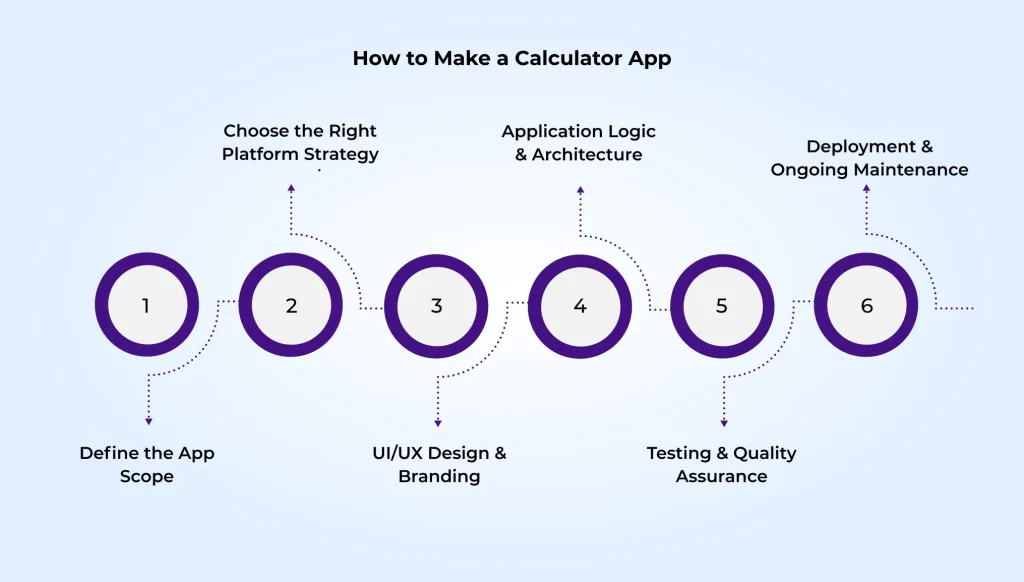
1: Define the App Scope
Before the development begins, businesses should clarify:
- Basic or advanced calculations
- Offline or cloud-connected
- Standalone app or a part of a larger system
- Branding and UI expectations
This phase defines the timeline, cost, and technology stack.
2: Choose the Right Platform Strategy
Businesses generally choose one of these options:
Android app: Great for a wider global reach
iOS app: ideal for Apple-centric audiences
Cross-platform app: for a single codebase for iOS & Android
Web: Browser-specific calculator without installs
The wrong platform can lead to higher costs later; in this case, expert guidance matters.
3: UI/UX Design
Even the calculator needs clear input fields, error handling (invalid input, division by zero), accessibility and responsiveness, and brand-aligned visuals. Poor UX can make even simple applications unusable.
4: Application Logic & Architecture
In this phase, developers implement calculation logic, manage edge cases, structure code to ensure maintainability, and prepare for future enhancements. In this way, professional development practices distinguish hobby apps from production apps.
5: Testing & Quality Assurance
Business-grade applications demand functional testing, performance validation, UI consistency checks, and device compatibility testing. If you wish to bypass the steps, it can cause rework expenses and negative reviews.
6: Deployment & Maintenance
Post-launch support includes bug fixes, store submission compliance, performance optimization, and feature upgrades.
A Quick Brief of Android Studio
Before moving to Android Studio, here’s a quick overview of Android. As an operating system primarily designed for mobile phones and other mobile devices, Android is developed by Google and is rooted in the Linux Kernel and other open-source software. Nowadays, however, this is used in TVs, watches, cars, Cameras, etc.
Android has been one of the top-selling operating systems for mobile phones. Android Inc. built the Android OS. It was bought by Google in 2005. It uses various applications, such as music players, cameras, and games, on smartphones and features more than 3.3 million apps. The apps are developed using Android Studio. Executable applications are installed in a package or bundle known as the Android Package Kit (APK).
As the standard Integrated Development Environment (IDE) for Android app development, Android Studio relies on JetBrains’ IntelliJ IDEA software. Android Studio offers numerous features that boost productivity while developing Android apps, including:
- A blended environment enabling you to develop for every Android device.
- Implement changes to push code and resource changes to the running application without pushing an app restart.
- A flexible Gradle-based build system.
- A prompt and feature-specific emulator.
- GitHub and Code template integration to help you develop usu al app features and import sample code.
- Extensive testing tools and frameworks.
- Support for C++ and Native Development Kit (NDK).
- Built-in support for GCP (Google Cloud Platform), which makes it effortless to integrate Google Cloud Messaging and App Engine, etc.
- Offers GUI tools that simplify the less interesting components of app development.
- Flawless integration with a real-time database.
Pre-Requisites for the Calculator App Project
To develop a simple calculator app for Android phones, the following are the prerequisites and requirements:
- Java: First, you need to be familiar with Java programming. It plays a crucial role as we will build the app code in Java.
- XML: Another essential part of the Android app. It will be used to develop the application’s user interface.
- Android Studio: As the backbone of the application, it helps develop the app. An Android virtual device is also shipped with Android Studio, helping test whether applications work well.
Core UI Elements in a Calculator App
Even simple apps revolve around well-defined interface components. Here is a detailed overview of the elements required to build a simple calculator app for Android.
Input Controls (Number Entry)
These fields ensure that users enter values to perform calculations. While looking at a business point of view, these should:
- Accept only relevant inputs
- Work smoothly on devices
- Offer a clean and hassle-free experience
With poor input handling, you can experience app abandonment.
Action Buttons (Operations)
Buttons can trigger actions like calculations and resets. While they look basic, their design and placement can directly impact usability, accessibility, conversions, and engagement. Well-designed buttons can minimize user error and elevate task completion speed.
Layout Structure (Screen)
Each app screen adopts a layout structure that defines how elements get arranged, horizontally, vertically, or responsively. A clean layout offers:
- Consistency across various screen sizes
- Greater user interaction
- Effortless future enhancements
This is where clear UI/UX planning plays a significant role.
Application Logic Layer
Behind the interface, the central activity or logic layer regulates user interactions, error handling, calculations, and data flow. For businesses, this layer defines how easy it is to scale, maintain, or extend the application.
Output Display (Results)
The result display area exhibits calculated outputs instantly. It should be easy to read, visually distinct, and updated in real-time.
Minor presentation flaws here can hinder trust in the application’s accuracy.
💡So, why do many businesses choose to work with professional mobile app development teams rather than go for tutorials?
Well, even a basic Android calculator app involves complex UX decisions, architecture planning, input validation, device compatibility checks, and testing workflows, and that says it all!
How to Build a Calculator App in Android Studio?
After installing Android Studio and opening it, you need to begin with a few new projects to begin the journey with Android. Before learning how to make a calculator app for Android, let’s understand the steps required to build a basic calculator app using Android Studio. Building a calculator app for Android requires the following prerequisites: basic knowledge of Java programming and Android Studio. Android Studio is installed on your system.
#1: Create a new Android Studio project
The development process begins by creating a new project in Android Studio using an empty activity template. In this phase, teams define the application name, package structure, and key project settings.
Here, Java is chosen as the programming language to ensure long-term support, stability, and compatibility with the enterprise–grade Android apps.
#2 Design App Layout
After the project gets created, developers build the app’s user interface with Android’s layout system. This incorporates:
- Input fields to enter numbers
- Action buttons to perform arithmetic operations
- A result display field
Here, the focus is on clarity, usability, and responsiveness that ensure the calculator app for Android works effortlessly across various Android devices.
#3 Implement Calculation Logic
Once the layout gets finalized, the core application logic gets implemented. This phase connects user actions (for instance, button tap) with the calculation engine that processes inputs and displays the results.
From a business point of view, this phase includes:
- Defining app behaviour
- Introducing error handling
- Setting the foundation for future enhancements
#4 Test & Run the Application
Before the app release, it gets tested on Android emulators and physical Android devices. Testing ensures that the calculator for Android performs precisely, manages edge cases, and offers a smooth user experience before app deployment.
What is the Cost to Build a Calculator App in Android Studio?
A simple calculator app for Android usually costs less than full-scale business applications; however, pricing depends on UI complexity, the platform used, testing requirements, and future scalability. If you wish to get a detailed breakdown of Android calculator app costs, particularly for your Android app, you can read the latest blog about Android app development costs and explore further.

Other Ways to Build an Android Calculator App
Apart from the standard approach in Android Studio, you can also make an Android calculator app using Java and an Android calculator app using Kotlin. For advanced needs, calculator apps can be developed using cross-platform frameworks like Flutter or React Native, allowing a single codebase to support Android (and even iOS) while ensuring a consistent user experience.
While you can build simple calculator apps in multiple ways, working with experienced Android app developers can help you ensure stunning design, better performance, and room for future enhancements.
Why Businesses Partner with NewAgeSysIT?
Instead of relying solely on tutorials, businesses would usually love to partner with a top Android development company or a reputable iOS development company to avoid technical debt, minimize time-to-market, build apps that scale beyond MVPs, and get Android, iOS, and cross-platform expertise under one roof. NewAgeSysIT stands out in this regard, with expertise in developing custom software for businesses, including the best calculator apps.
By clearly analyzing the scope and features of the calculator for Android, we offer solutions that align with your organization’s objectives. Making this happen involves setting up a development environment, designing a user interface, and implementing core functionality. Through stringent quality assurance processes, we ensure the development of a reliable application that functions best under various platforms.
Final Thoughts
A custom app can go a long way toward improving your business and growing customer engagement in today’s world. In any industry you’re engaged with, you can think of developing a powerful Android calculator app tailored to your requirements, thereby improving your workflow and operational efficiency.
A calculator for Android might appear simple; however, adopting the proper measures with scalability and usability in mind needs thoughtful planning and execution. If you’re exploring app development for your business, hiring mobile app developers or having the right partner by your side can help you achieve the mission with a strategic approach towards building for you. To learn more about building a simple calculator app, let’s talk!
FAQ
1. How do I create a simple calculator app in Android Studio step by step?
You can build a basic calculator app with a simple UI design, including calculation logic, and connecting actions with the help of Android Studio tools. Expert app developers streamline this process by adopting the best practices for scalability and improved performance.
2. Which language is the best for building an Android calculator app, Java, or Kotlin?
Both Java and Kotlin are well-suited for building an Android calculator app; however, Kotlin is now mainly used for faster development and cleaner code. Dedicated Android developers choose the language for future enhancements and long-term maintenance.
3. How do I test and debug a calculator app in Android Studio?
Testing includes evaluating calculations, analyzing UI behavior, and measuring performance across devices using built-in debugging tools. A development team improves stability nd accuracy with structured testing before app launch.
4. How to build a simple calculator in Android Studio?
A simple calculator for Android is made by infusing a basic user interface with arithmetic logic. Businesses usually depend on developers to ensure the application is user-friendly and ready for future upgrades.
5. How do I build a simple app in Android Studio?
Building a simple app in Android Studio involves setting up the project, designing screens, and implementing core functionality. Working with dedicated experts helps transform simple ideas into production-ready apps.
6. What is the cost for developing a custom calculator application?
The cost to develop a custom calculator application depends on design complexity, features, and platform requirements. Hiring professional app developers ensures cost-efficient development with scalable architecture.
7. How long does it typically take to build a production-ready calculator app?
A basic calculator app usually takes a few weeks, depending on features and testing needs. An experienced development team can scale delivery while maintaining quality standards.